Dispensary Levels
|
Within the Dispensary module, you can perform a variety of tasks to help you locate and monitor kit levels.  Review Dispensary Requests Review Dispensary Requests
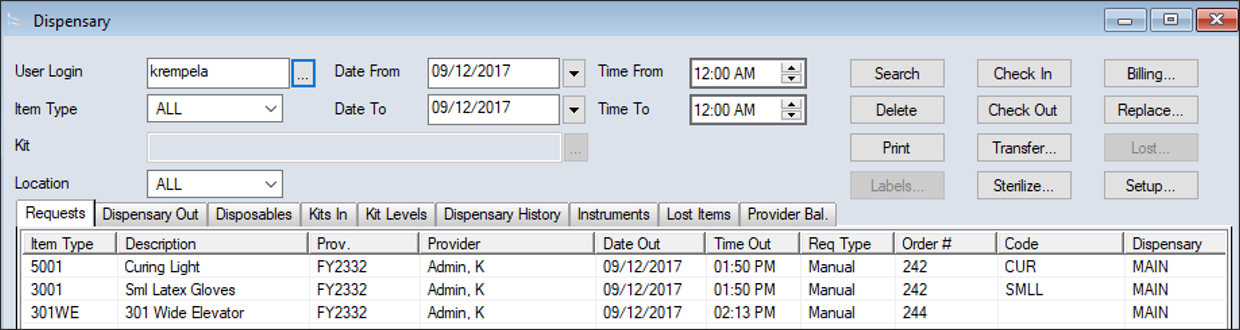
All submitted dispensary requests display in the Requests tab. Most institutions will search for dispensary requests the night before and prepare the kits and sundries each provider has requested before each session begins. This allows staff members to scan the provider’s ID when providers approach the dispensary window and scan out each requested kit efficiently, reducing the time providers must wait to check out kits before their appointments. Requests made automatically via scheduled appointment display Appt under the Req Type column. Requests made manually via the Patients or Personal Planner modules, display Manual under the Req Type column. To review dispensary requests:
Note: Some fields are only available from specific tabs. Example: Many institutions instruct their staff to check out the requested kits and sundries ahead of time and place them in each provider’s marked cubby. When the provider arrives at the clean dispensary at the beginning of the session, they can retrieve their requested kits from their cubby and begin their appointment. Review Available Kits
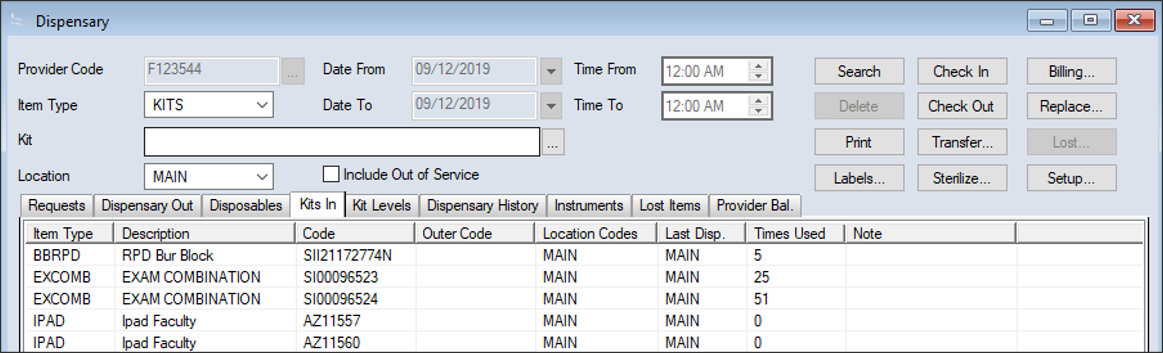
You can monitor the number of kits that are currently checked in to a specific location and are physically present from the Kits In tab. Depending whether the kits are clean or dirty, they may be available to be checked out or moved to the sterilizer. Important: Kits that are checked out do not display in this tab. When you conduct a search, the kit type displays, as well as the description, location, the number of times used, etc. To review available kits:
Tip: Select a specific dispensary location from the Location drop-down list.
Note: Some fields are only available from specific tabs. Depending on the results, and your role and workflow, you can complete a variety of other tasks. Review Checked Out Items
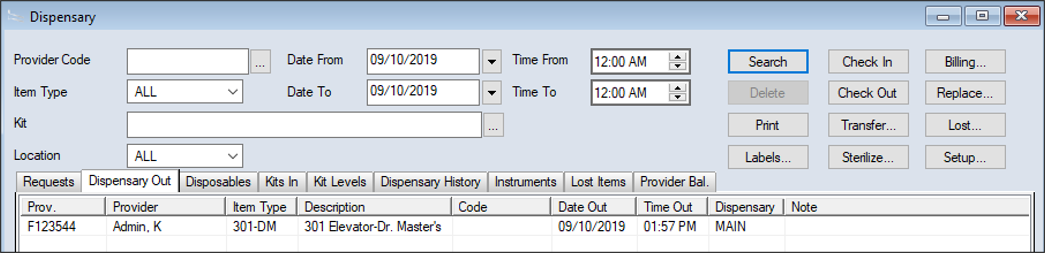
At the day's end you can generate and print a list of currently checked out items, and use this to identify which items have not been returned.
Note: Some fields are only available from specific tabs. Depending on the results, and your role and workflow, you can complete a variety of other tasks. Review Kit Levels at Locations
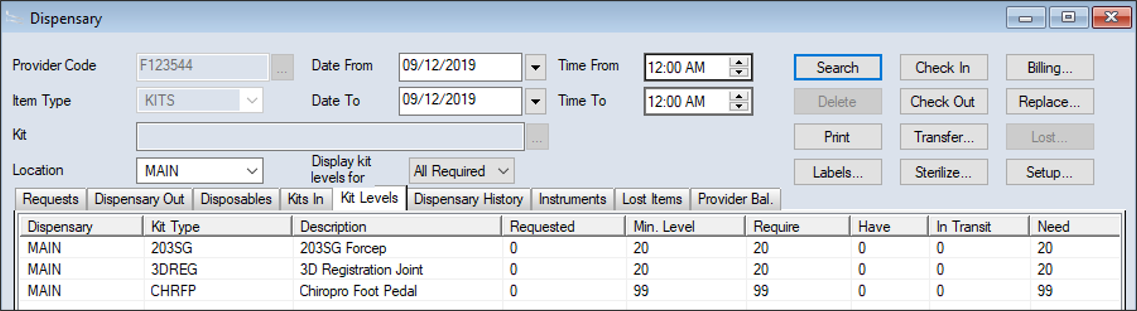
You can review your kit supply levels from the Kit Levels tab; this tells you specific information about all kit types including:
Example: The main dispensary location may have a minimum level of 20 basic kits, so the Min. Level and Require columns display 20. There are currently 8 basic kits in the location, so the Have column displays 8 and the Need column displays 12. If 3 providers have submitted requests for a basic kit, the Requested column displays 3. You can use the list generated to identify which kit types require more kits to fulfill their minimum for the dispensary location. You can also use the list to locate dispensary locations with excess kits that can be transferred to another location with a shortage of those kits. Important: Kit inventory levels are configured from the Dispensary Levels window during Dispensary setup. Note: You can only view inventory levels for Dispensary type locations. You cannot view inventory levels for Sterilization, Cart, or Other type locations. To review kit levels:
Tip: Select a specific dispensary location from the Location drop-down list.
Note: Some fields are only available from specific tabs. Depending on the results, and your role and workflow, you can complete a variety of other tasks. Review Disposable Levels
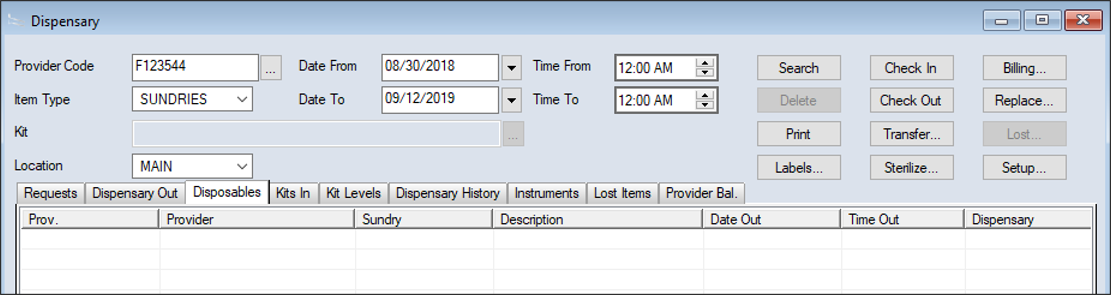
You can review the levels of disposable items used during appointments on a given day to help you track the number of items that are being used by providers. Example: You want to determine how many gloves are used over a set period of time, so you know when to order more boxes of gloves from the Inventory module. Note: The Dispensary and Inventory modules can be integrated to track sundry item usage and inventory levels simultaneously. If configured using linked locations and linked items, you can use the Disposables tab to track the levels of sundry items checked out of a dispensary location, and the product levels adjust automatically in the linked inventory location. Inventory users can then make orders to re-stock products as necessary. To review disposable levels:
Note: Some fields are only available from specific tabs. Depending on the results, and your role and workflow, you can complete a variety of other tasks. View Instrument Information
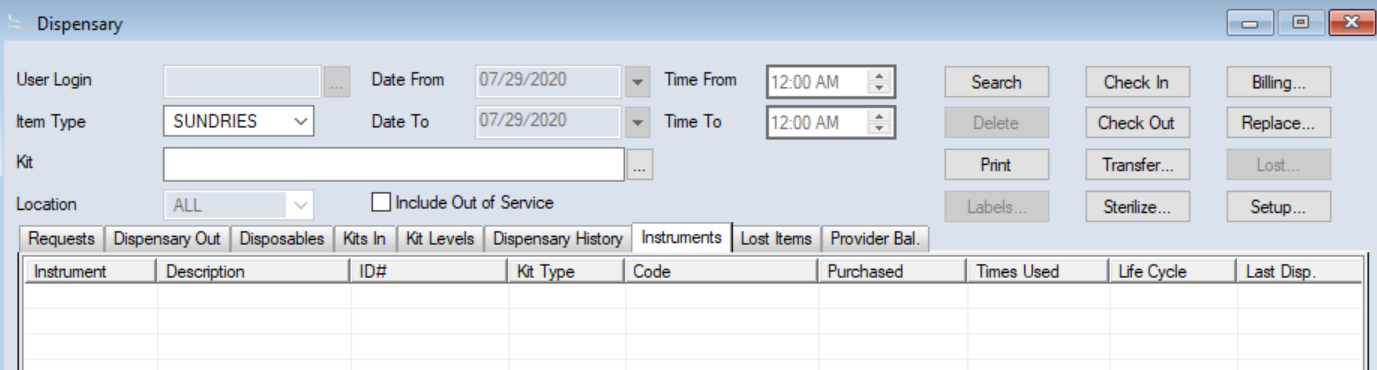
You can search for instruments in the Dispensary module and view details such as how often each has been used, its lifecycle, and last dispensary location.
Note: Some fields are only available from specific tabs. Review Lost Items
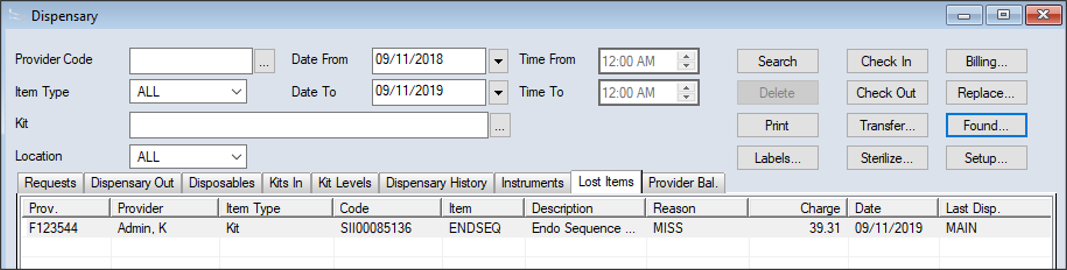
Items that staff mark as lost are added to the lost item to the list view in the Lost Items tab. You can use this list to identify kits that need to be purchased for replacement, and also to identify providers who frequently lose items. To review lost items:
Note: Some fields are only available from specific tabs. Depending on the results, and your role and workflow, you can complete a variety of other tasks. Review Provider Account Balances
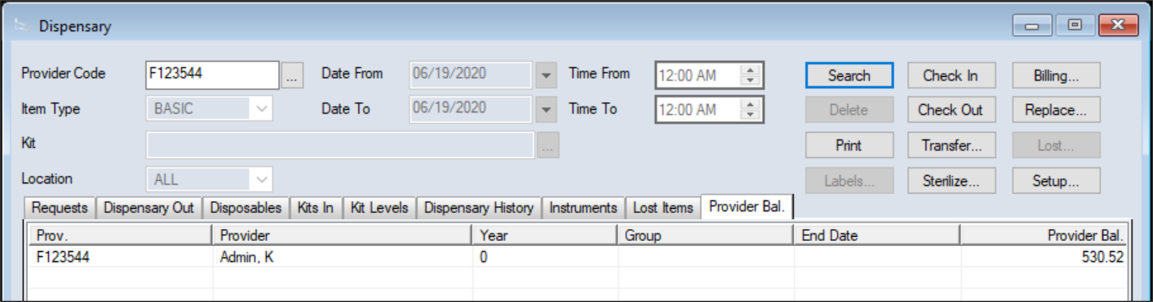
If a dispensary item is marked as lost or found and results in a charge or refund to the provider, axiUm re-calculates the provider’s balance and displays it in the Provider Bal. tab.
Note: Some fields are only available from specific tabs. View Dispensary Activity History
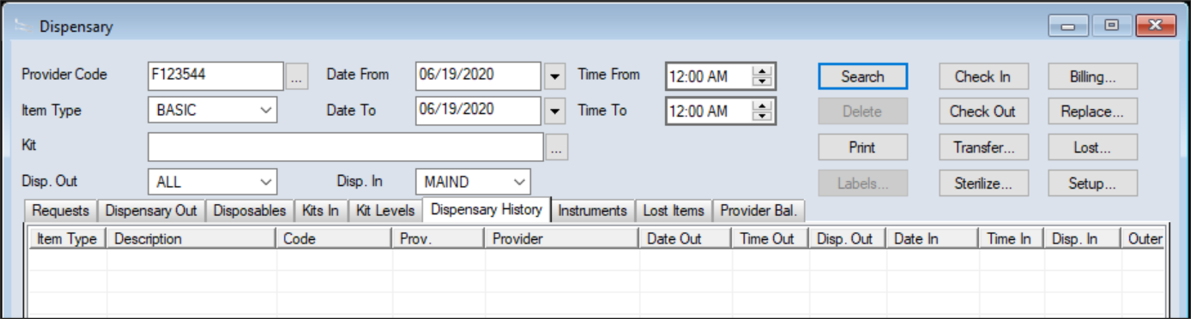
You can view the history for dispensary items during a specific time range.
Note: Some fields are only available from specific tabs.
|